Get started
 Log in
Special Education Packets: A New Recipe for Success
|
Leslie Strong Product Line Manager |

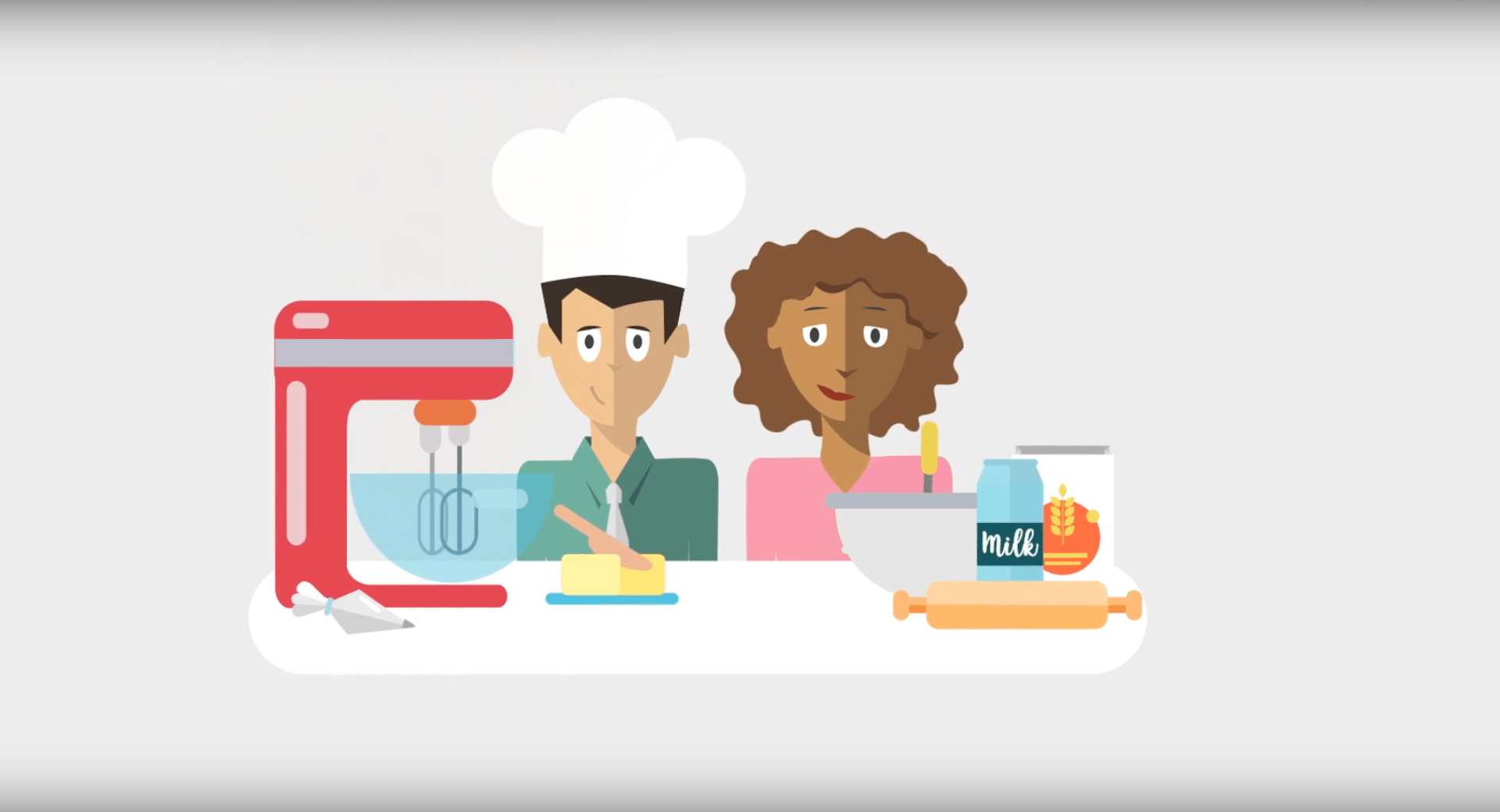
What’s the first thing you do when it’s time to cook? Throw all of the ingredients in the oven? Sure, some people have that rare skill, but most of us prefer (or need) to start with a recipe. Take the guesswork out of my hands and give me a step-by-step path to culinary success any day.
Wouldn’t it be nice if filling out special education evaluation and IEP forms was as straightforward as following a recipe? We think so. That’s why, in the June release, we’re giving you the tools you need to create special education packets – easy-to-follow recipe cards of sorts – to simplify the documentation process for special ed staff at your school. Sure, evaluations and IEPs are student specific, so documentation will always vary, but these packets should give your staff a great outline and starting point to work from so the process is a little less overwhelming.
Introducing: Special Education Packets
The goal of setting up “packets” is to assist special ed staff in determining the forms necessary to complete required documentation for each student scenario. Whether or not your district chooses to use this feature is entirely up to you – you could choose to use it for just evaluations, just IEPs, or for nothing at all.Under Special Education forms in Skyward, you will find Form Setup. This is where you can set up the packets using rule types. A rule type may be set up for an initial evaluation, for example, that would identify the forms used in that scenario. To create a packet, go through the list of forms and check either “optional” or “required.” If you don’t check either, the form will not show up as an option for the teacher to fill out. On the list of required forms that teachers view (the packet), required forms will show up in bold while optional forms will not be bolded.
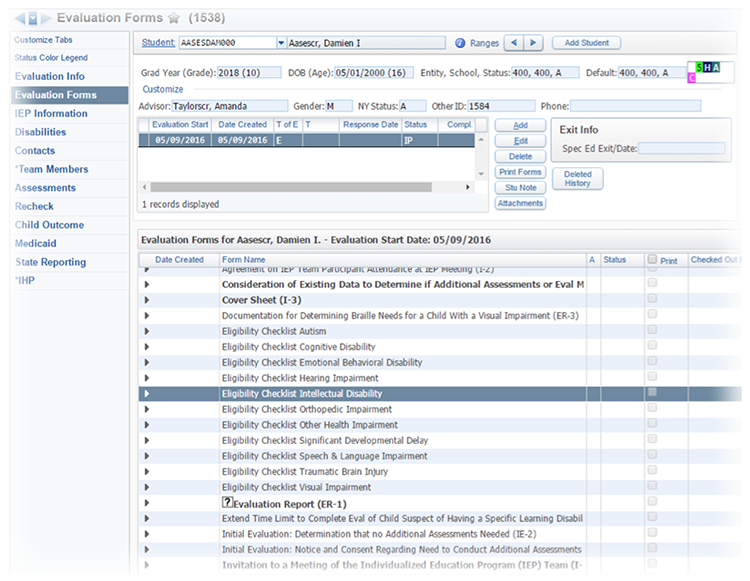
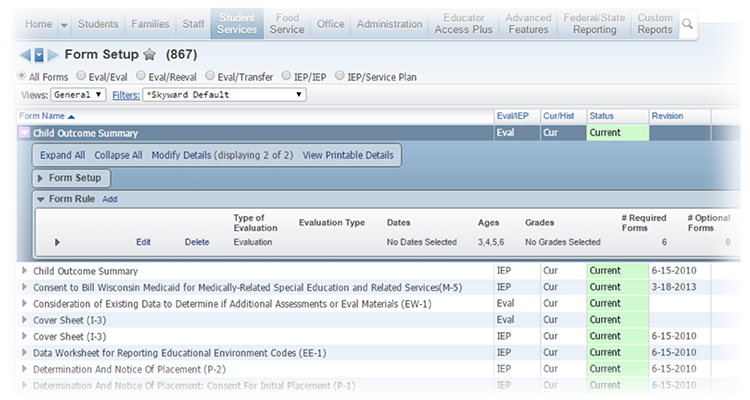
To set up secondary, more in-depth rules, click the black triangle to the left of a form’s name. This lets you add additional requirements to the form. Secondary rules can be set up to determine the order in which forms must be filled out or to designate specific circumstances (age, grade, etc.) in which a form is required.
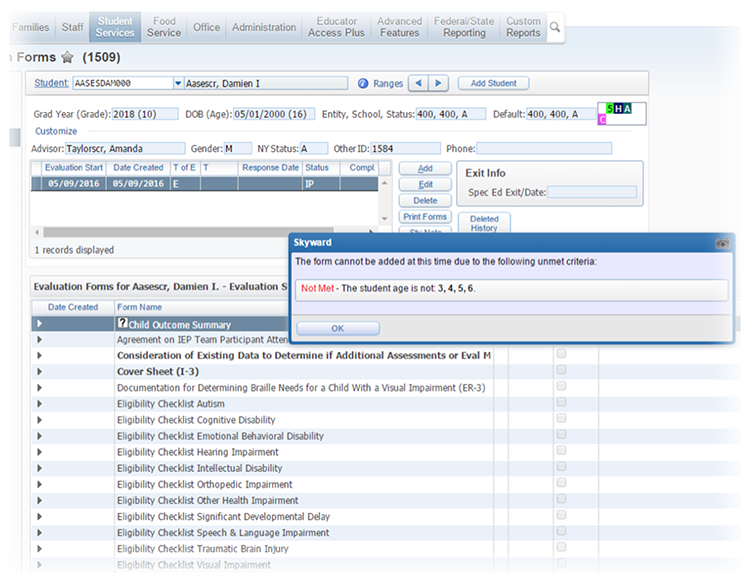
When a teacher views the list of forms in the packet, he or she can click on the question mark for details about which rules are set up, whether the rules have been met for that specific child, and, if they have not, why not.
Tips and Tricks
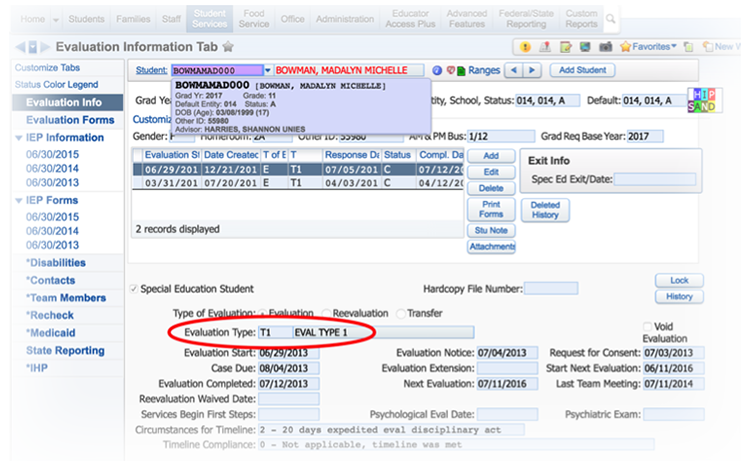
Don’t feel like you have to set up everything at once. You could start with, for instance, a packet for the initial IEP; that’s the one I would recommend creating first. As the year goes on, you can put additional packets together.Use the Evaluation and IEP Type codes. (The Evaluation Type field is on the Evaluation Information tab and the IEP Type field can be found on the IEP Information tab.) Codes are great organizational tools that make grouping and finding cases and information easier. You create the codes; if you are starting with just initial IEPs, then, for now, you will only create one code. You can add additional codes as you add more packet types.
This functionality is coming in the June release, so you’ll definitely have time to set up a packet (or several) before the next school year starts. Again, start small then build.
Looking to the Future
With the October release, you will be able to require teachers to review the IEP packet for each student in their class who follows one, and then check a box confirming they’ve read it. This enhancement will help ensure all teachers are in the know and on board with following the special education plan.General packet rules will work together with situation-specific rules. This means if you have forms that are used for a specific subset of students – for example, transition documents – you can set up the form rules to be honored based on age as part of the larger packet rules you establish.
The creation of Special Education packets for evaluation and IEP forms is a recipe for success. With clear requirements and steps in place, your special ed staff can breeze through documentation and save their time and brainpower for the classroom, where it’s needed most.
Tools for Special Populations
When it comes to special populations, Skyward has the tools you need to help your students achieve the best outcomes.
Thinking about edtech for your district? We'd love to help. Visit skyward.com/get-started to learn more.
|
Leslie Strong Product Line Manager |