Get started
 Log in
One-Page Pitch: Why You Should Ditch Passwords and Use Passphrases
|
Mike Bianco Director of Information & Data Security |

Protecting user credentials can keep your entire district afloat.
That’s why it’s imperative that you and everyone else at your district understands the importance of using strong passphrases.
“Passphrases?” you ask. “Is that the same as a password?” Not quite!
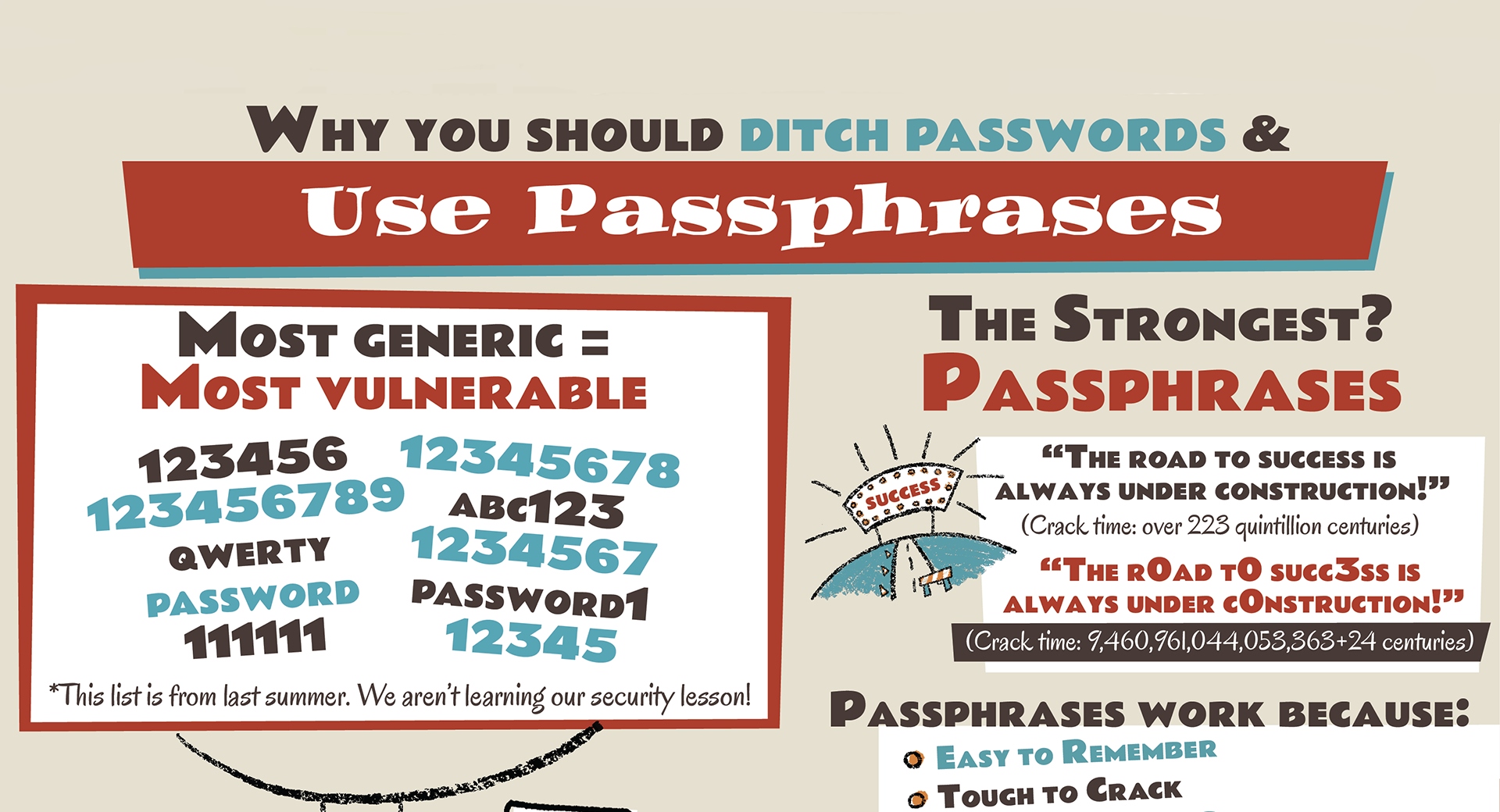
Passwords are typically composed of up to 10 letters, numbers, symbols, or combinations of these characters. Most people were taught to create strong passwords by substituting letters for numbers or symbols—for example, password, becomes p@ssw0rd. Tricky, right? Well, unfortunately, criminals know this game too, and even complex passwords with substitutions are relatively easy to crack for both humans and robots. Online criminals have also developed state-of-the-art hacking tools designed to crack even the most complicated passwords.
So now what? Insert the passphrase.
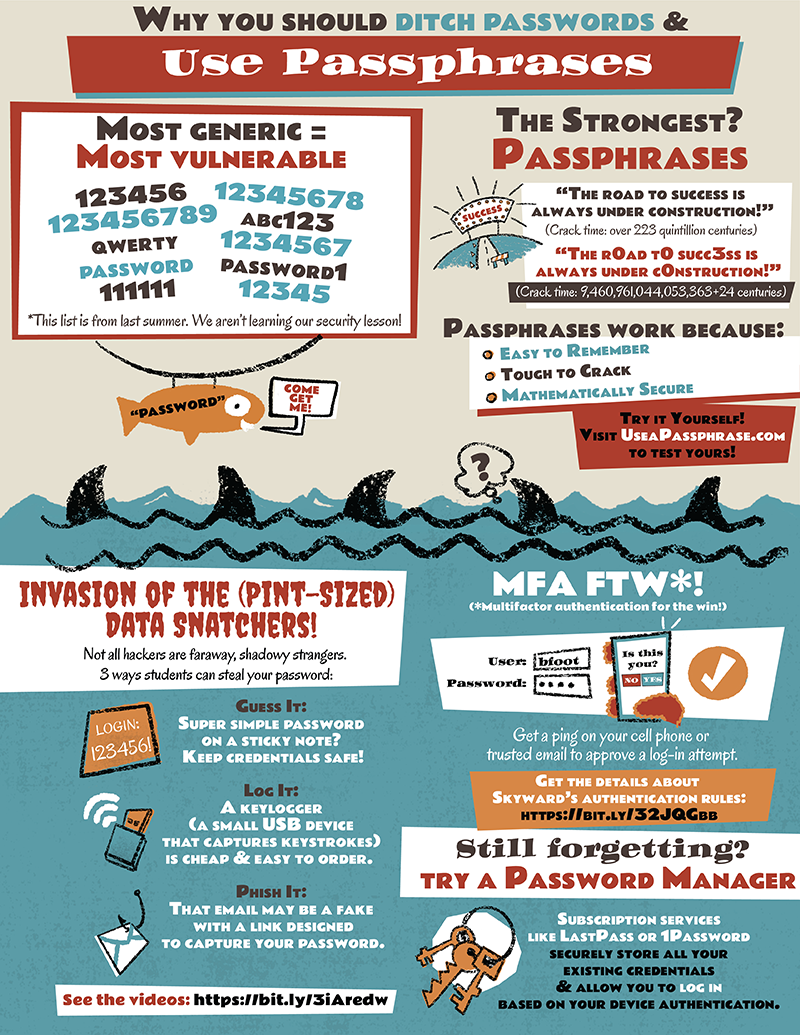
A passphrase is longer than a password and contains spaces between words. Here’s an example: “The road to success is always under construction!” (Approximate crack time: 223,966,385,786,166,380,000 centuries)
A passphrase can also contain numbers or symbols, such as: “The r0ad t0 succ3ss is always under c0nstruction!” (Approximate crack time: 9.460,961,044,053,363e+24 centuries)
Here are a few reasons why security professionals recommend passphrases:
- They are easier to remember.
- They are more difficult to crack.
- They are easily modified to satisfy complex passwords rules.
Passphrases should be easy to remember, but preferably not popular or common phrases that can be easily guessed by someone who knows you. Want to try it out? Visit www.useapassphrase.com to test your phrase’s strength.
If you have trouble remembering multiple complicated passphrases, a password service can store your passphrases for you. That way, you only need to remember one (VERY strong, unguessable) passphrase.
Using strong passphrases is important, but there’s more you can do to keep your data safe. Whenever possible, elect multi-factor authentication (MFA) settings. MFA will send an approval message to your trusted device or email (or both) so you can approve or deny any attempts to log in. This extra step is an additional line of defense should your credentials fall into the wrong hands.
Speaking of—a hacker should never get lucky by simply being in the right place at the right time. Never leave credentials near your devices (including benign sticky note reminders under your keyboard). Inspect ports for new, unobtrusive dongles, which could be keyloggers—small USB devices that capture every letter you type, including your passwords. You can never be too careful when it comes to protecting your credentials.
Constant vigilance keeps districts from paying huge ransoms for precious data. Is it time to update your password?
↪ Download and share the infographic now.
Follow-up resource: Subscribe for more
If you liked this one-page pitch, be the first to get the next one! Enter your email in the footer below to subscribe!Thinking about edtech for your district? We'd love to help. Visit skyward.com/get-started to learn more.
|
Mike Bianco Director of Information & Data Security |