Get started
 Log in
Home
Using Family Access
How Parents View Messages and Notifications
Stay up to date with important school communications! Learn how parents can find and view messages and notifications in Skyward Family Access, so important updates are always easy to find.
Share this resourceTranscript
When talking about student progress toward graduation, there are three areas in Skyward that are helpful for parents: Graduation Requirements, Endorsements, and Career Plans...
When talking about student progress toward graduation, there are three areas in Skyward that are helpful for parents: Graduation Requirements, Endorsements, and Career Plans.
Let's look at how to use all three.
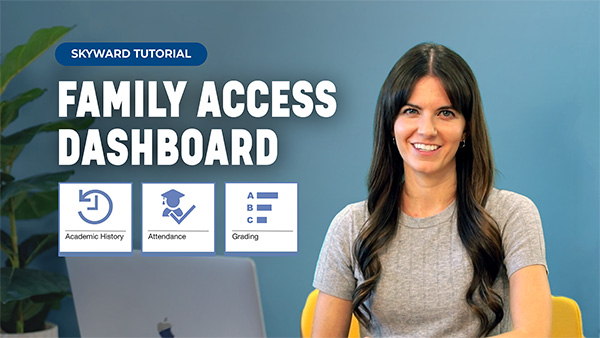
We see tiles for these three areas on our dashboard.
If we click on the Graduation Plan tile for Maya, we'll see the breakdown of credits by subject area.
In the header, we'll see a summary of credits required, completed, and in progress. We'll also see future and waived credits.
If we click on the arrow icon next to a sub-area, we'll see the courses that meet this requirement.
In this example, Maya has a half credit completed for English I.
Back on the main dashboard, let's look at the Endorsements and Endorsement Progress tiles.
Endorsements are areas of study that a student declares and intends to complete, kind of like a major in college. These are in addition to graduation requirement plans.
By clicking on an Endorsement tile, we see Maya has an endorsement in STEM.
When we open the sub-area by clicking on the arrow here, we can sign for it.
In the Endorsement Progress tile, we can choose the endorsement and the focus.
Here we see that Maya has not yet met this endorsement. As she continues her coursework, this area will be updated.
Career Plans are a student's four-year plan. They map out the curriculum students will complete each year leading up to graduation.
To view a summary of this plan, we'll click on the Career Plans tile on the main dashboard.
Under the Career Plan Summary tab, we'll see Maya's total progress.
We can also sign the plan here.
Under the Planned Curriculum tab, we can choose a grade level and see a line for each curriculum item planned, along with the sub-area and the credits it fulfills.
Read the Full Transcript
Let's look at how to use all three.
We see tiles for these three areas on our dashboard.
If we click on the Graduation Plan tile for Maya, we'll see the breakdown of credits by subject area.
In the header, we'll see a summary of credits required, completed, and in progress. We'll also see future and waived credits.
If we click on the arrow icon next to a sub-area, we'll see the courses that meet this requirement.
In this example, Maya has a half credit completed for English I.
Back on the main dashboard, let's look at the Endorsements and Endorsement Progress tiles.
Endorsements are areas of study that a student declares and intends to complete, kind of like a major in college. These are in addition to graduation requirement plans.
By clicking on an Endorsement tile, we see Maya has an endorsement in STEM.
When we open the sub-area by clicking on the arrow here, we can sign for it.
In the Endorsement Progress tile, we can choose the endorsement and the focus.
Here we see that Maya has not yet met this endorsement. As she continues her coursework, this area will be updated.
Career Plans are a student's four-year plan. They map out the curriculum students will complete each year leading up to graduation.
To view a summary of this plan, we'll click on the Career Plans tile on the main dashboard.
Under the Career Plan Summary tab, we'll see Maya's total progress.
We can also sign the plan here.
Under the Planned Curriculum tab, we can choose a grade level and see a line for each curriculum item planned, along with the sub-area and the credits it fulfills.