Get started
 Log in
Home
Using Family Access
Push Notifications
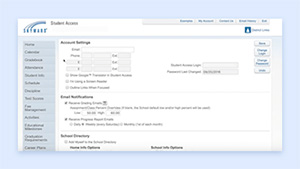
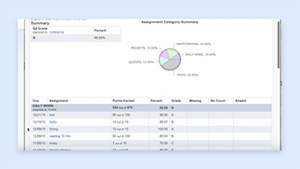
Tired of logging in over and over just to see if a new grade has been posted? Receive an alert every time something new is available.
Share this resourceTranscript
Welcome to another 60-Second Power-Up.
Wouldn't it be nice if you didn't have to keep checking to see if your teacher posted your last test score?...
Wouldn't it be nice if you didn't have to keep checking to see if your teacher posted your last test score?...
Welcome to another 60-Second Power-Up.
Wouldn't it be nice if you didn't have to keep checking to see if your teacher posted your last test score?
Today we're going to look at push notifications, which alert you every time your teacher enters a grade.
When you open the app, tap the menu in the top right corner.
Select the person icon to access your settings.
Under User Preferences, tap Push Notifications.
Here, you can manage which devices your notifications are sent to.
You can also customize which notifications you would like to receive.
Once you've made a change to your preferences, be sure to click Save.
It's as easy as that!
Check out the other 60-Second Power-Ups and become even more Skyward-savvy!
Read the Full Transcript
Wouldn't it be nice if you didn't have to keep checking to see if your teacher posted your last test score?
Today we're going to look at push notifications, which alert you every time your teacher enters a grade.
When you open the app, tap the menu in the top right corner.
Select the person icon to access your settings.
Under User Preferences, tap Push Notifications.
Here, you can manage which devices your notifications are sent to.
You can also customize which notifications you would like to receive.
Once you've made a change to your preferences, be sure to click Save.
It's as easy as that!
Check out the other 60-Second Power-Ups and become even more Skyward-savvy!