Get started
 Log in
Gradebook Display
Tired of the same old gradebook? You have options! Choose what you see and how you see it with these display options.
Share this tipTranscript
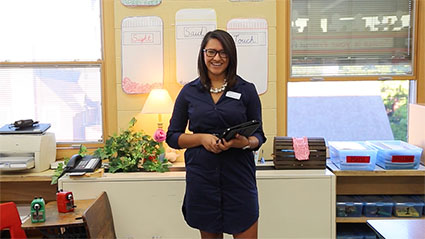
As a teacher, you have your own unique style. Your classroom reflects your personality as much as it does your instructional approach...
Hi, I'm Laura.
As a teacher, you have your own unique style. Your classroom reflects your personality as much as it does your instructional approach.
But, what if you could personalize your gradebook, too?
Cue Skyward's Gradebook Display Options.
In the main gradebook, select Display Options from the menu above the list of students.
Student Display allows you to customize just that, how your students' names are displayed. View nicknames, add elements such as student ID and grade level, and sort your students by name, seat, or grade sheet sequence.
Once you've made changes, be sure to click Save.
Use Assignment Display to select which items are visible in your gradebook, such as averages, term grades, and assignments. You can also choose how assignments will be titled.
With Grade Period Display, you can select which term grades are visible or set the boundaries based on a date range.
Modify Grade Sheet Sequence gives you the flexibility to change the order of students in your gradebook.
To make a change, simply click on a student's name, and then click Move Up or Move Down.
Your class is one-of-a-kind, and your gradebook should be, too.
Work smarter with Skyward's customizable Gradebook Display Options, and stay tuned for the next Quick Hits for teachers, coming soon.
Watch More From Teacher

Online Assignments

Mobile Access App