Get started
 Log in
Automated Emails
How many times do you find yourself crafting the same email message over and over again?
Share this tipTranscript
It's always exciting discovering new ways that Skyward can help school districts improve communication...
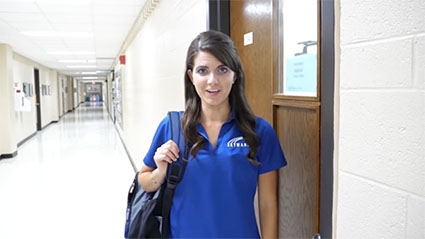
Hi, I'm Lauren Gilchrist.
It's always exciting discovering new ways that Skyward can help school districts improve communication.
As a superintendent, you know that getting the word out is crucial to the success of just about every district process, from PO approvals to managing student behavior.
Despite a growing need for consistency, many email notifications are still being handled on a manual, one-off basis every time a triggering event occurs.
It's the 21st century, so trust me when I say it doesn't have to be that way.
How to Set Up Automated Emails
From your Skyward dashboard, click on Advanced Features and Automated Emails.
Here, you can see a full list of the automated emails being used in your district.
To set up a new automated email, click on Add.
From here, you'll select an event type and a trigger action.
Then, select recipients based on their relationship to the student where applicable, or manually add selected staff to the list. You'll typically use this second option for financial and HR-related emails.
Finally, select a priority level for the email, and then proceed with crafting your message.
A drop-down list of dynamic information from your Skyward database makes personalizing it easy.
In this day and age, accurate and timely communication can make all the difference.
Work smarter with Skyward's automated email feature.
Stay tuned for the next Quick Hits for Superintendents, coming soon.
Watch More From Administration

Family Access
Tardy Kiosk